


To change your address you first need to access your User Profile from the web view.
Go to www.xchangedocs.ca and select login located at the top right of the screen
Select the My Profile option from the Account dropdown menu located on the Main Navigation bar.

The Email address is shown with the option to change it by following the Change Email Address process. Select the Change email address link to initiate the Change Email Address process.
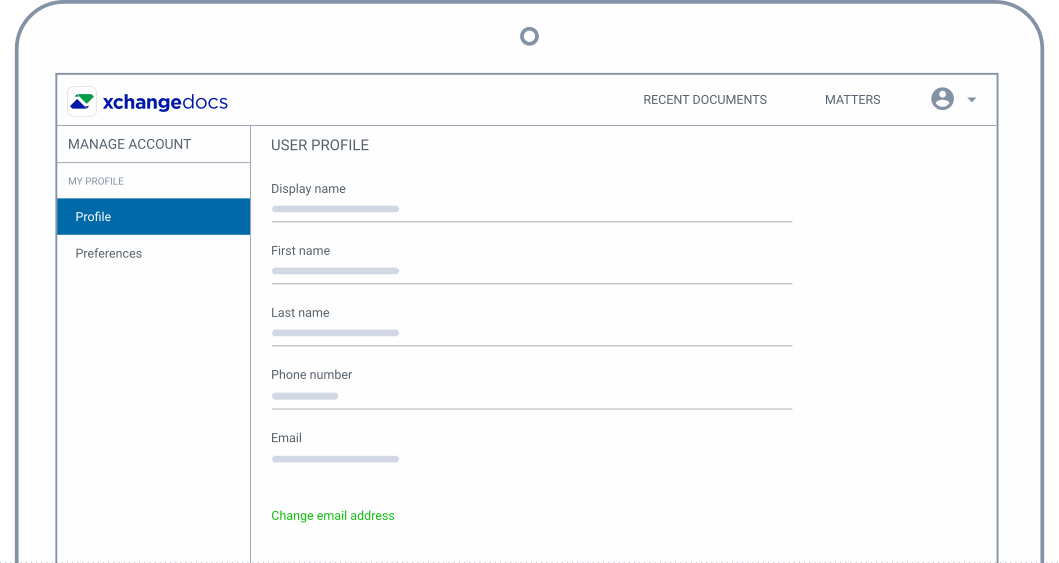
To successfully update your email address, you are required to complete the Change Email Address process. Log in first with your existing email and password; then follow the prompts and provide the new email address. A verification code is sent to your specified email address. Provide the verification code when prompted. Once completed, you can log in with your new email address and existing password.
Ensure that your ACL Administrator has updated your profile in ACL under Menu > Configuration> Manage Users
Once the above changes are made, you can now log into ACL and use the xchangedocs touch point to log back into your account.