


This article explains how to create a Pre-bill or a Bill in Unity® Accounting.
The Create Prebills and Bills feature is used to show the amount owed by the client for the services rendered.
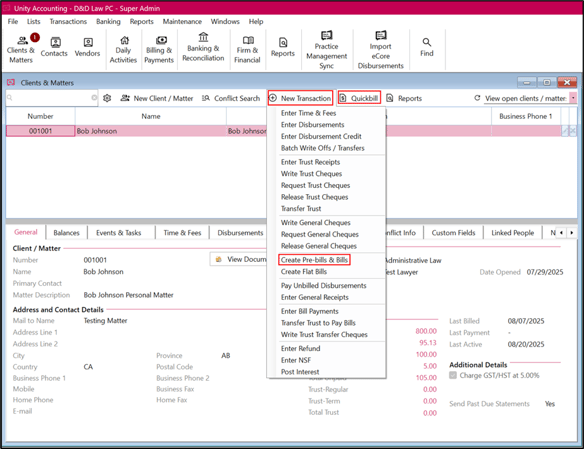
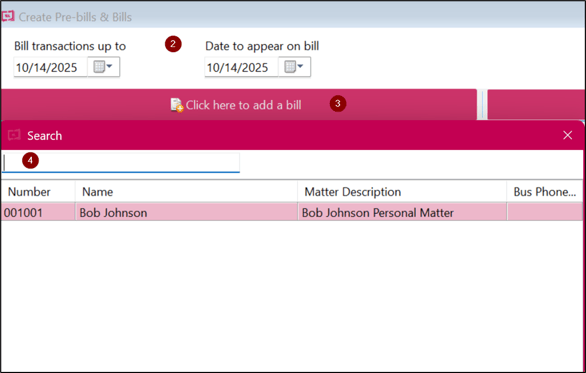
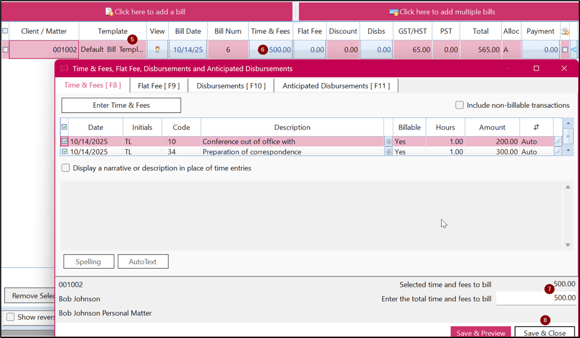
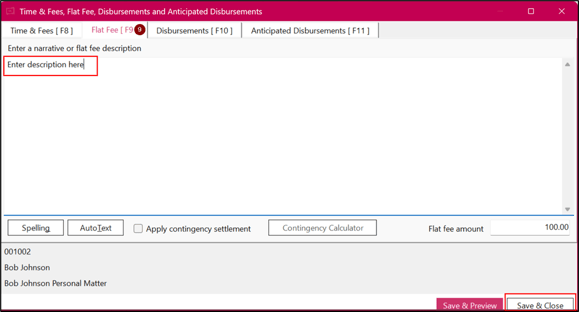
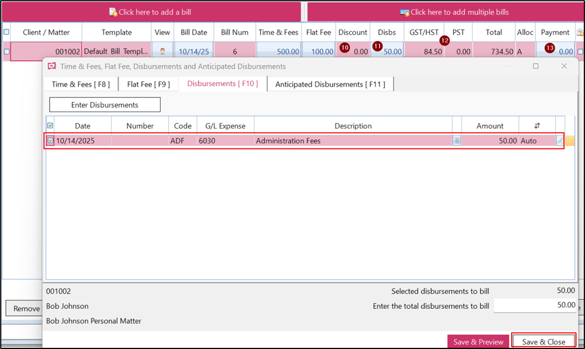
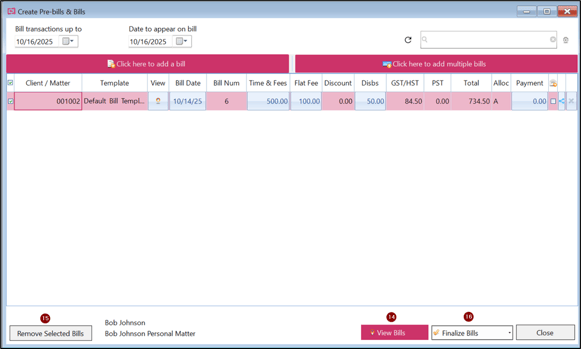
To create a pre-bill or a bill:
- Click on Clients & Matters and select New Transaction > Create Pre-bills and Bills.
- Select or enter the date for transactions up to and the date to appear on the bill.
- Click on Click here to add a bill.
- Select or enter client/matter.
- Select a bill template.
- Double click on Time and Fees and select the transactions to be included.
- Confirm the total amount chargeable for time and fees.
- Click on Save & Close.
- For flat fees, click on Flat Fee and enter the description and the amount, then Save & Close.
- Enter the amount of discount if any.
- Double click on disbursements and select the transactions to be included in the bill.
- The total amount of GST will automatically be calculated as per the total amount of a bill. Alternatively, these amounts can also be changed.
- In case funds needs to be transferred from the trust and shown to the client, click on payment and type the amount to be transferred from trust.
- Click on View Bills.
- In case a bill needs to be removed, select that bill and click on Remove Selected Bill.
- Click on Finalize Bills and the choose any one from the options displayed to post the bill.
Tips:
|