


This article explains how to add a new Client or Matter in Unity® Accounting.
Steps to add a new client or matter include:
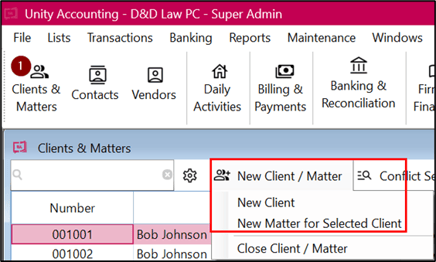
- Select Clients and Matters and click on new Client
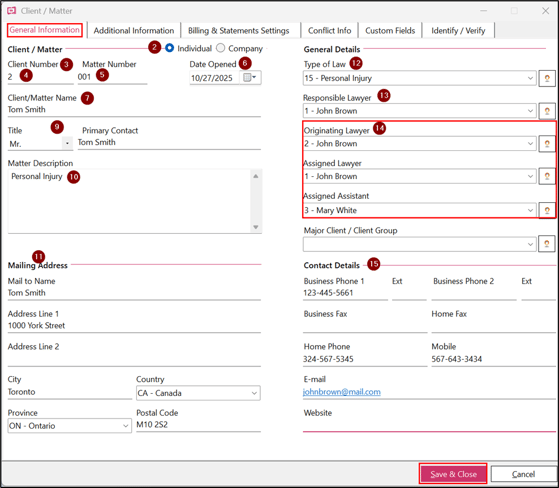
- In the General Information, select if the client is an individual or a company
- Enter the next client number, it will be automatically popping up if under Global settings automatic client numbering is checked
- The client number can be changed while adding new client. Client number can be 12-digit long
- Enter the matter number which can be 6-digit long
- Select or enter the date of opening the client
- Enter the Client Name
- In case Create Conflict Database in Global Settings is enabled then client/matter name will be checked for a potential conflict. If there is no conflict, click Enter to continue
- Select the Title and enter the name of the primary contact of the client
- Enter the matter description in detail, this description is shown on the bills and reports
- Enter the mailing address which includes the name of the person and the full address including Province and the Postal Code
- Select the Type of Law
- Select the Responsible Lawyer
- Select the originating and assigned lawyer or assigned assistant. This field is not mandatory
- Enter the relevant Contact details
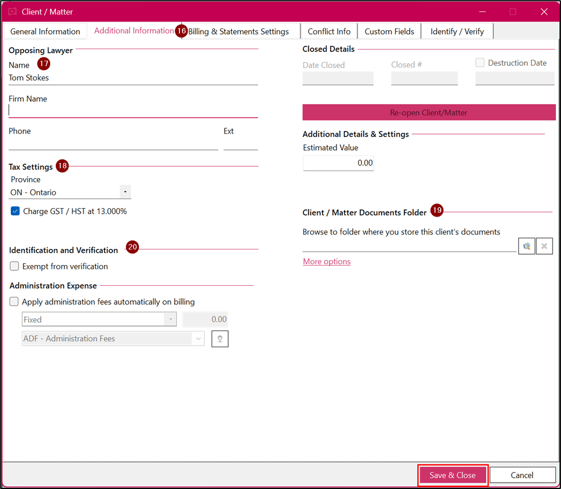
- Click on the next tab Additional Information of the Client and Matter
- Enter the name of the opposing lawyer and the opposing party name if any
- Select the Province for the tax setting of the client and if GST and PST are levied in that province
- Documents can be attached to the client file using the Client/Matter Document folder
- In case client is exempt from identification and verification, check the box under Identification and Verification
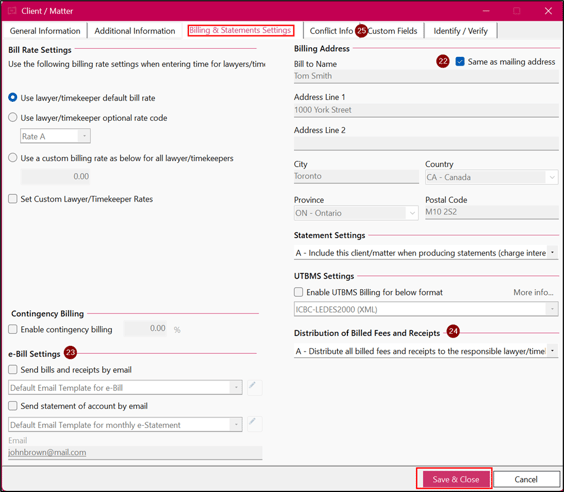
- Click on the next tab Billings and Statements where bill rates can be defined for a client. New rates can also be set per lawyer
- In case the billing address is same as mailing address, check the checkbox of Same as Mailing address as this address will show on the bill
- E-Bill settings can be done for sending the bills, receipts and the statement of accounts by email to the client
- Distribution of statement setting and billed fees and receipts settings can be done
- Click on the next tab Conflict Information where conflict Information can be added for a client or matter by clicking on Add Conflict Information and filling up the form
|
Tips
|